


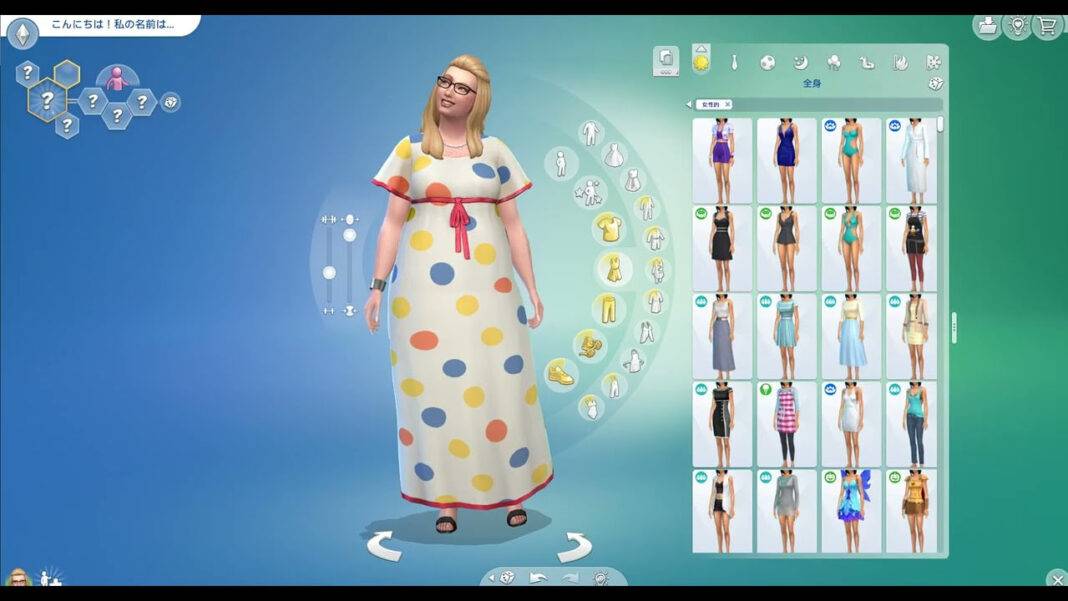

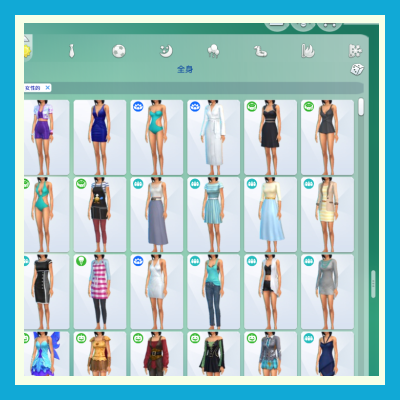
ถ้าใครใช้เวลาในเกม The Sims 4 ส่วนใหญ่ไปกับการปั้นซิมใน Create-a-Sim (CAS) น่าจะคุ้นเคยกับความน่ารำคาญข้อนึงดี — แคตตาล็อกเสื้อผ้า/ผม/เครื่องประดับของเกมค่าเริ่มต้นจะถูกล็อกไว้ที่ 2 คอลัมน์แคบ ๆ ดูไอเทมได้ทีละไม่กี่ชิ้น เลื่อนหาไอเทมทีต้องปัดหน้าจอกันจนเมื่อยมือ
Dynamic CAS Columns โดยครีเอเตอร์ maru คือมอดที่มาแก้ปัญหานี้โดยตรง — เปิดให้คุณปรับจำนวนคอลัมน์ของแคตตาล็อก CAS ได้อิสระตั้งแต่ 2 ไปจนถึง 6 คอลัมน์ แถมในอัปเดตล่าสุดยังเพิ่มสไลเดอร์ปรับขนาดรูปย่อ (Thumbnail Size Slider) มาให้อีกด้วย
📦 ข้อมูลมอด
- ชื่อมอด: Dynamic CAS Columns with Thumbnail Size Slider
- ผู้สร้าง: maru
- แหล่งดาวน์โหลด: CurseForge
- ยอดดาวน์โหลด: 10,454+ ครั้ง
- เวอร์ชันเกม: 1.128.90 (Base Game)
- อัปเดตล่าสุด: 6 ตุลาคม 2026
- ไลเซนส์: Creative Commons 4.0 (ฟรี)
✨ ฟีเจอร์เด่นของ Dynamic CAS Columns
🖥️ ปรับคอลัมน์ได้ 2–6 คอลัมน์ (Dynamic Column Resizing)
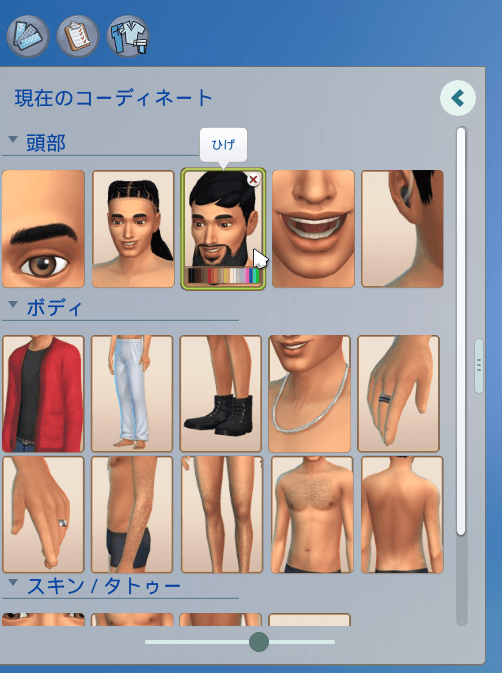
หัวใจหลักของมอดนี้คือการลากขอบขวาของแคตตาล็อกเพื่อขยายหรือย่อจำนวนคอลัมน์ได้ตามใจ — ตั้งแต่ 2 คอลัมน์แบบดั้งเดิม ไปจนถึง 6 คอลัมน์สำหรับคนจอใหญ่ที่อยากเห็นไอเทมพร้อมกันเยอะ ๆ ระบบปรับขนาดแบบ real-time ลากแล้วเห็นผลทันที สลับระหว่างมุมมองกะทัดรัดกับเลย์เอาต์กว้าง ๆ ได้แบบไม่ต้องรีโหลดเกม
🔍 Thumbnail Size Slider — ปรับขนาดรูปย่อ 50%–100%
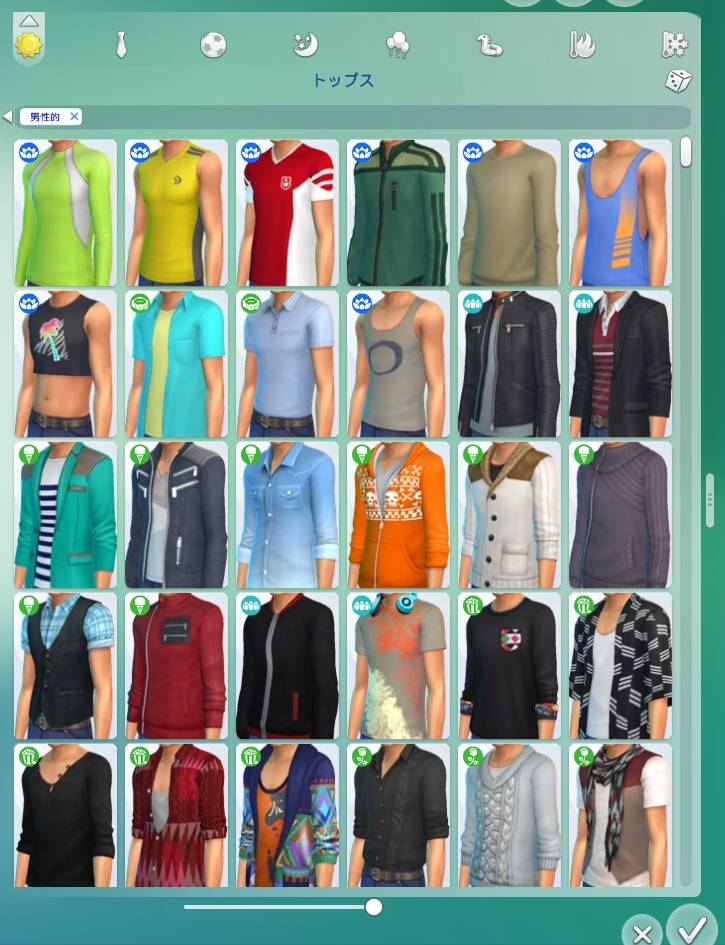
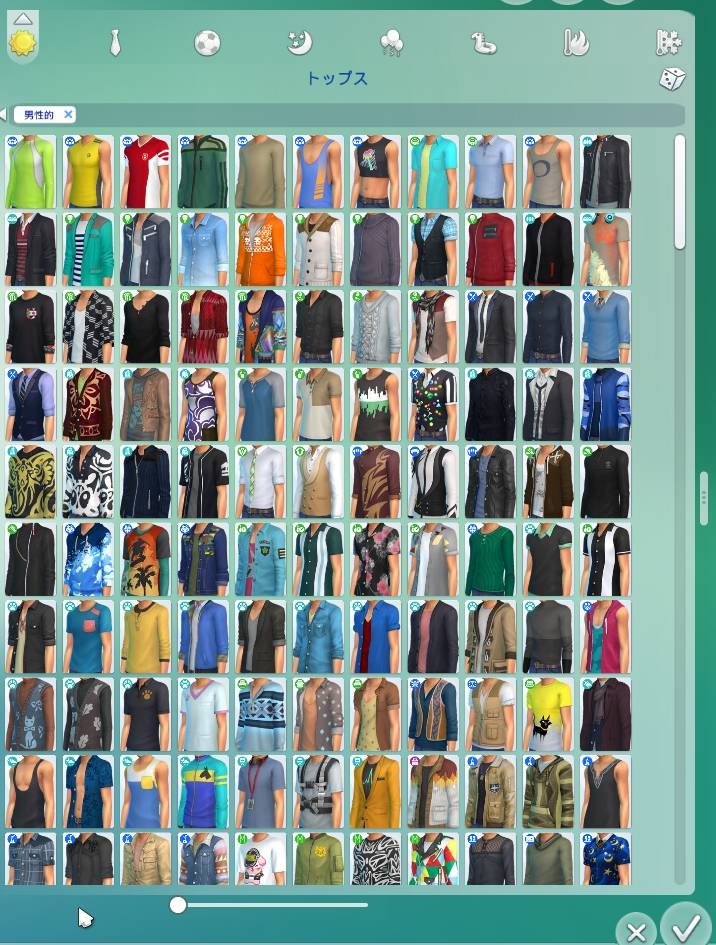
ฟีเจอร์ใหม่ที่เพิ่งเพิ่มเข้ามา สไลเดอร์อยู่ด้านล่างของแคตตาล็อก ใช้ปรับขนาดรูปย่อของไอเทมได้ตั้งแต่ 50% ไปจนถึง 100% เมื่อปรับขนาดแล้วแคตตาล็อกจะจัดเรียงไอเทมใหม่ให้พอดีกับพื้นที่อัตโนมัติ ย่อลงก็เห็นไอเทมพร้อมกันมากขึ้น ขยายขึ้นก็ดูรายละเอียดชัดขึ้น
⭐ Favorites — ปักหมุดไอเทมโปรด
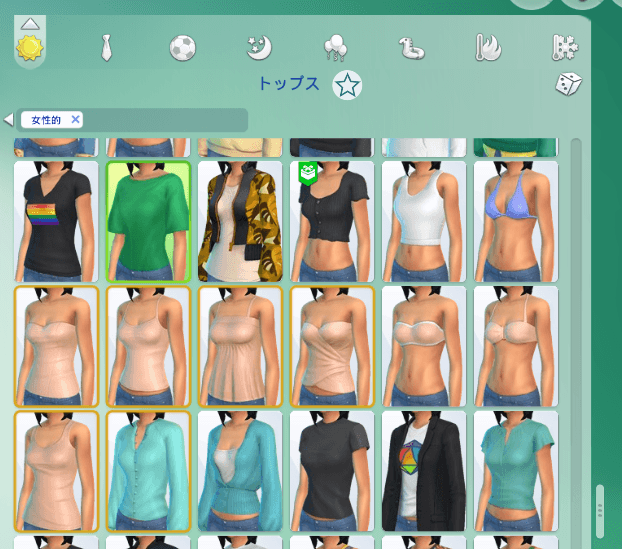
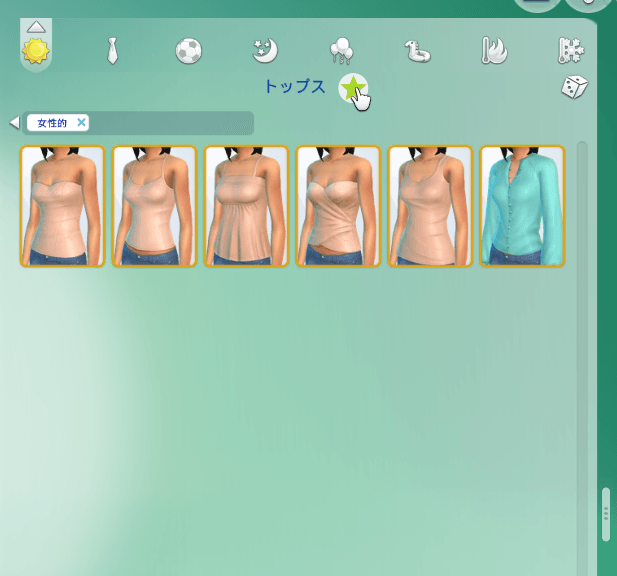
คลิกขวาที่รูปย่อของไอเทมตัวไหนก็ได้เพื่อเพิ่มเข้า Favorites แล้วกดไอคอนดาวข้างชื่อหมวดเพื่อกรองให้แสดงเฉพาะไอเทมที่ปักหมุดไว้ อยากเอาออกก็แค่คลิกขวาที่รูปเดิมอีกครั้ง — สะดวกมากสำหรับคนที่ใช้เสื้อ/ผม/รองเท้าซ้ำ ๆ เป็นประจำ
🕘 History Panel — ย้อนดูไอเทมที่เพิ่งลอง
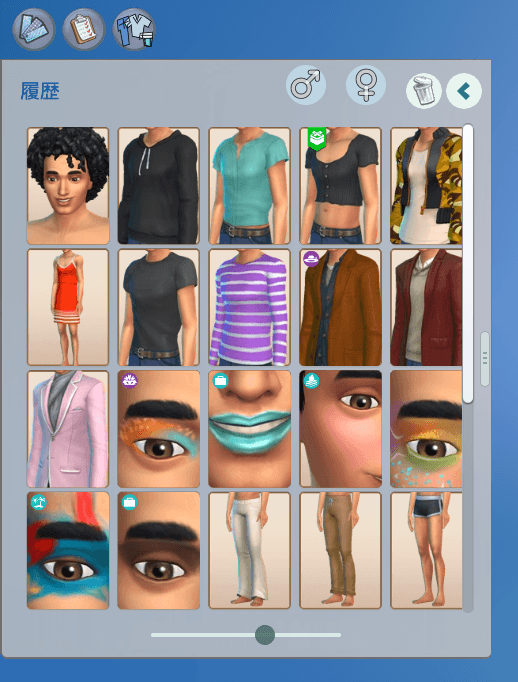
แผง History จะเก็บบันทึกไอเทม CAS ที่คุณเพิ่งเลือกไว้ล่าสุด ใช้ย้อนกลับไปหยิบของที่เคยลองใส่แล้วมาดูใหม่ได้ทันที ไม่ต้องเสียเวลาเลื่อนหาจากศูนย์อีกครั้ง ไอเทมใน History คลิกเลือกได้เหมือนไอเทมปกติ ช่วยให้เทียบลุคหลาย ๆ แบบได้รวดเร็วขึ้น
🎨 Swatch Preview — ดูสวอตช์สีแยกจอ
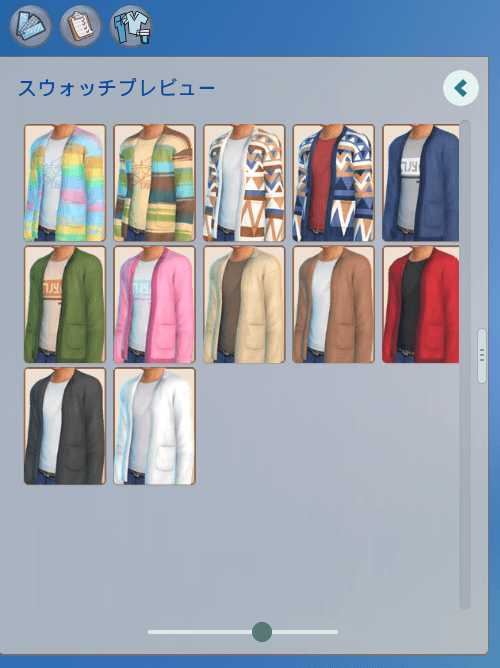
แผง Swatch Preview แสดงตัวเลือกสีสวอตช์ทั้งหมดของไอเทมที่กำลังเลือกไว้ในจอแยกโดยเฉพาะ ทำให้ไล่ดูและเทียบสีต่าง ๆ ได้สะดวก โดยไม่ต้องกินพื้นที่ในแคตตาล็อกหลัก
👗 Current Outfit — ดูชุดที่ซิมใส่ตอนนี้
แผง Current Outfit จะโชว์ไอเทมที่ซิมของคุณสวมใส่อยู่ตอนนี้ โดยจัดเรียงเป็นหมวดหมู่ คุณสามารถดูภาพรวมของชุดปัจจุบัน และเลือกหรือถอดไอเทมแต่ละชิ้นได้โดยตรงจากแผงนี้เลย
⏯️ CAS Playback Controls — พัก/เล่นท่าทางซิม
ปุ่มควบคุมการเล่นอยู่ที่แถบนำทางด้านล่าง ใช้ปุ่ม pause เพื่อหยุดการขยับของซิมใน CAS และปุ่ม play เพื่อเล่นต่อ หรือกดปุ่ม P บนคีย์บอร์ดเพื่อสลับระหว่างพักกับเล่นได้เร็ว ๆ
💾 บันทึกการตั้งค่าอัตโนมัติ
จำนวนคอลัมน์และขนาดรูปย่อที่คุณตั้งไว้จะถูกบันทึกและเรียกคืนอัตโนมัติในครั้งถัดไปที่เปิด CAS โดยเก็บไว้ในไฟล์ UserSetting.ini ใต้หัวข้อ [uiaccountsettings] เช่น dynamic_cas_columns.columns#number = N และ dynamic_cas_columns.thumbnail_scale#number = S ส่วนแผง History, Swatch Preview และ Current Outfit ก็มีการตั้งค่าเลย์เอาต์ของตัวเองแยกต่างหาก
🔗 ดาวน์โหลด
- 📥 ดาวน์โหลด Dynamic CAS Columns (CurseForge)
- 📥 ดูไฟล์ทุกเวอร์ชัน
- 🆓 โหลดฟรี ไม่ต้องสมัครสมาชิก
🔧 วิธีติดตั้ง
- ดาวน์โหลดไฟล์
maru_Dynamic_CAS_Columns.zipจาก CurseForge - แตกไฟล์ ZIP ที่ดาวน์โหลดมา
- คัดลอกไฟล์ที่ได้ (ทั้งไฟล์
.packageและ.ts4scriptถ้ามี) ไปวางในโฟลเดอร์Documents > Electronic Arts > The Sims 4 > Mods - เปิดเกม เข้าเมนู Options > Game Options > Other แล้วติ๊กเปิด Enable Custom Content and Mods และ Script Mods Allowed
- รีสตาร์ทเกม แล้วเข้า Create-a-Sim เพื่อลองลากขอบแคตตาล็อกปรับคอลัมน์ได้เลย
📌 ข้อควรรู้
- มอดตัวนี้ทำงานในส่วน Create-a-Sim เท่านั้น ไม่กระทบโหมด Live หรือ Build/Buy
- การตั้งค่าทั้งหมดจะถูกบันทึกอัตโนมัติต่อผู้ใช้ เปิดเกมครั้งใหม่ก็ยังอยู่ครบ
- แนะนำให้เช็กหน้า CurseForge เป็นระยะ เพราะมอดเพิ่งอัปเดตบ่อย (ออกเวอร์ชันแรก 1 ตุลาคม 2026 และอัปเดตต่อเนื่องถึง 6 ตุลาคม)
🎮 ลองโหลดไปปรับเลย์เอาต์ CAS ให้เป็นสไตล์ตัวเองกันครับ
Dynamic Column Resizing
Dynamic CAS Columns allows you to resize the Create-a-Sim catalog from 2 to 6 columns simply by dragging the right edge of the panel.
The catalog resizes in real time, so you can quickly switch between a compact view and a wider layout depending on how much space you want for browsing CAS items.
Thumbnail Size Slider
You can also adjust the size of CAS catalog thumbnails using the slider at the bottom of the catalog. Thumbnail size can be changed from 50% to 100%, and the catalog automatically rearranges the items to make use of the available space.
Favorites
Right-click any CAS item thumbnail to add it to your favorites.
Click the star icon next to the category name to filter the catalog and display only your favorited items.
To remove an item from your favorites, simply right-click its thumbnail again.
History Panel
The History panel keeps track of CAS items you have recently selected, making it easy to return to something you tried earlier without searching through the catalog again.
Items in the History panel can be selected just like regular catalog items, allowing you to quickly compare different looks while creating your Sim.
Swatch Preview
The Swatch Preview panel gives you a dedicated view of the available color swatches for the currently selected CAS item.
This makes it easier to browse and compare different color variations without taking up additional space in the main catalog.
Current Outfit
The Current Outfit panel shows the CAS items your Sim is currently wearing, organized by category.
You can quickly review the items that make up the current outfit and select or remove individual items directly from the panel.
CAS Playback Controls
Playback controls are also available on the bottom navigation bar. Use the pause button to stop your Sim’s movement in CAS, and the play button to resume it whenever you want.
You can also press the ‘P’ key to quickly toggle between pause and play.

Saved Settings
Your selected column count and thumbnail size are saved automatically and restored the next time you open CAS.
The main CAS catalog settings are stored in UserSetting.ini under [uiaccountsettings] as:
dynamic_cas_columns.columns#number = Ndynamic_cas_columns.thumbnail_scale#number = S
The History, Swatch Preview, and Current Outfit panels share their own layout settings:
dynamic_cas_history.columns#number = Ndynamic_cas_history.thumbnail_scale#number = S
where N is the selected number of columns and S is the saved thumbnail scale.
Conflicts
- Mods that increase the number of CAS columns
Compatible Mods
- Color Slider mods
- More Traits in CAS
- Mods that change the CAS UI colors